1. Docker를 활용해 Nginx 실행
1) Nginx 이미지 다운로드
Docker Hub - nginx : https://hub.docker.com/_/nginx
nginx - Official Image | Docker Hub
Quick reference Supported tags and respective Dockerfile links 1.29.8, mainline, 1, 1.29, latest, 1.29.8-trixie, mainline-trixie, 1-trixie, 1.29-trixie, trixie 1.29.8-perl, mainline-perl, 1-perl, 1.29-perl, perl, 1.29.8-trixie-perl, mainline-trixi
hub.docker.com
- Windows PowerShell
PS C:\Users\admin> docker pull nginx
Using default tag: latest
latest: Pulling from library/nginx
Digest: sha256:6e23479198b998e5e25921dff8455837c7636a67111a04a635cf1bb363d199dc
Status: Image is up to date for nginx:latest
docker.io/library/nginx:latest

What's next:
    View a summary of image vulnerabilities and recommendations → docker scout quickview nginx
2) 다운로드 된 이미지 확인
- Windows PowerShell
PS C:\Users\admin> docker image ls
                                                                                                                                                                                             i Info →   U  In Use
IMAGE          ID             DISK USAGE   CONTENT SIZE   EXTRA
nginx:latest   6e23479198b9        240MB         65.8MB
· ls : list 의 약자
3) 이미지를 컨테이너에 올려 Nginx 서버 실행
- Windows PowerShell
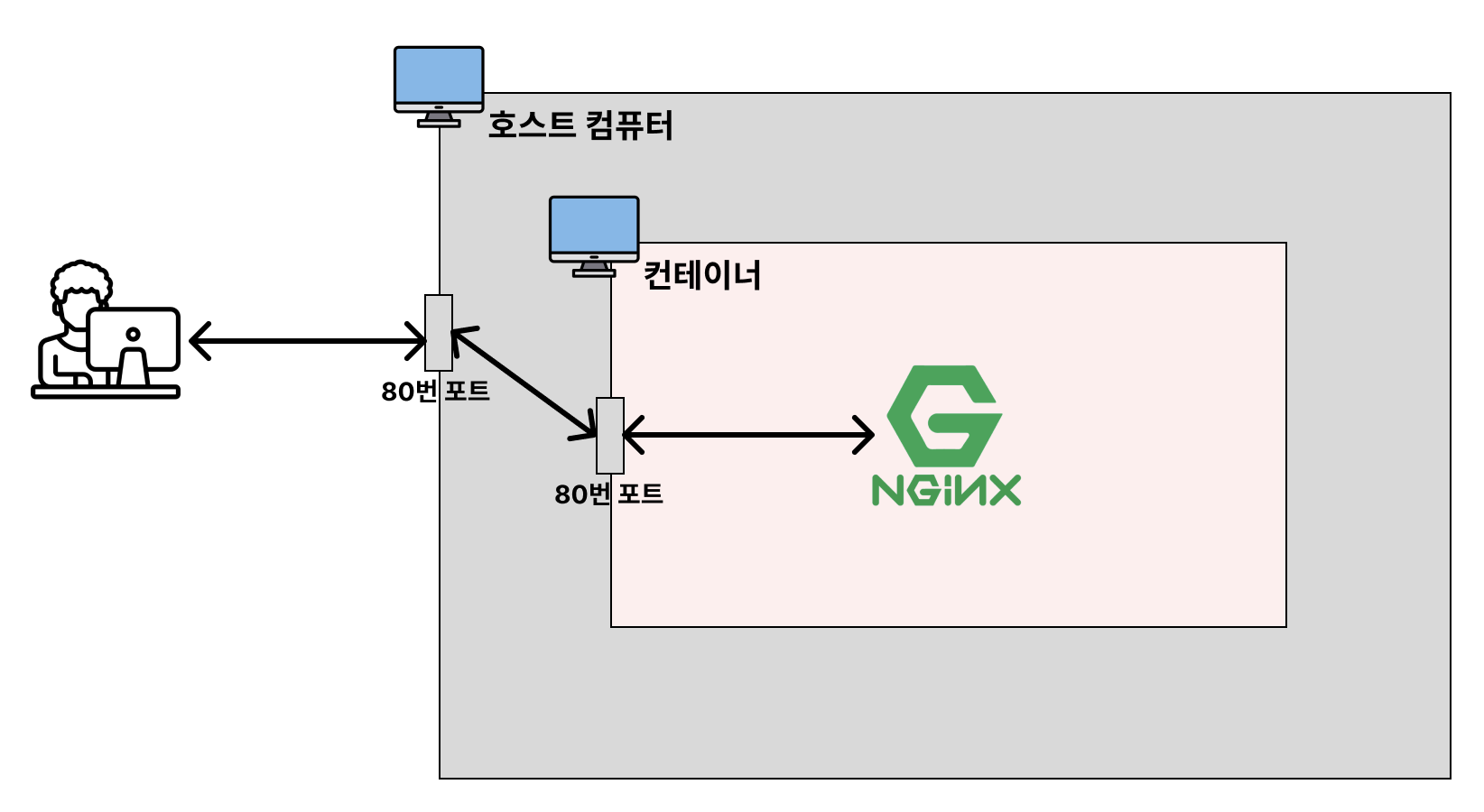
PS C:\Users\admin> docker run --name webserver -d -p 80:80 nginx
d6c5a7aeb0493d2eddb23ef0f513f1fa5cd538e88e81dfe2b08d3c2b6492bf0c
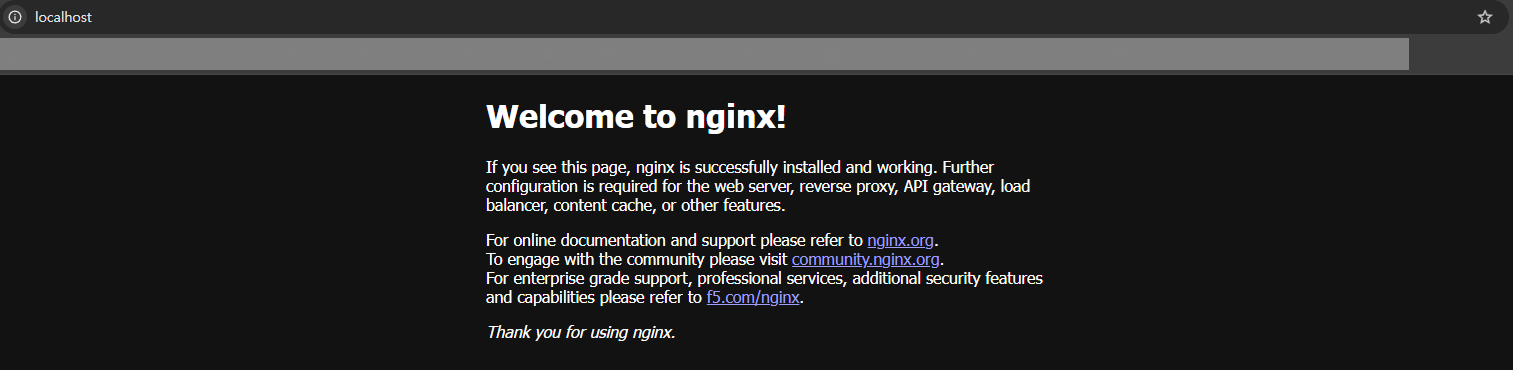
4) Nginx 서버가 잘 실행되는 지 확인
브라우저에서 http://localhost:80/ 접속
5) 실행되고 있는 모든 컨테이너 상태 확인
- Windows PowerShell
PS C:\Users\admin> docker ps
CONTAINER ID   IMAGE     COMMAND                  CREATED         STATUS         PORTS                                 NAMES
d6c5a7aeb049   nginx     "/docker-entrypoint.…"   2 minutes ago   Up 2 minutes   0.0.0.0:80->80/tcp, [::]:80->80/tcp   webserver
6) 특정 컨테이너 정지
- Windows PowerShell
PS C:\Users\admin> docker stop webserver
webserver
PS C:\Users\admin> docker ps
CONTAINER ID   IMAGE     COMMAND   CREATED   STATUS    PORTS     NAMES
PS C:\Users\admin> docker ps -a
CONTAINER ID   IMAGE     COMMAND                  CREATED         STATUS                      PORTS     NAMES
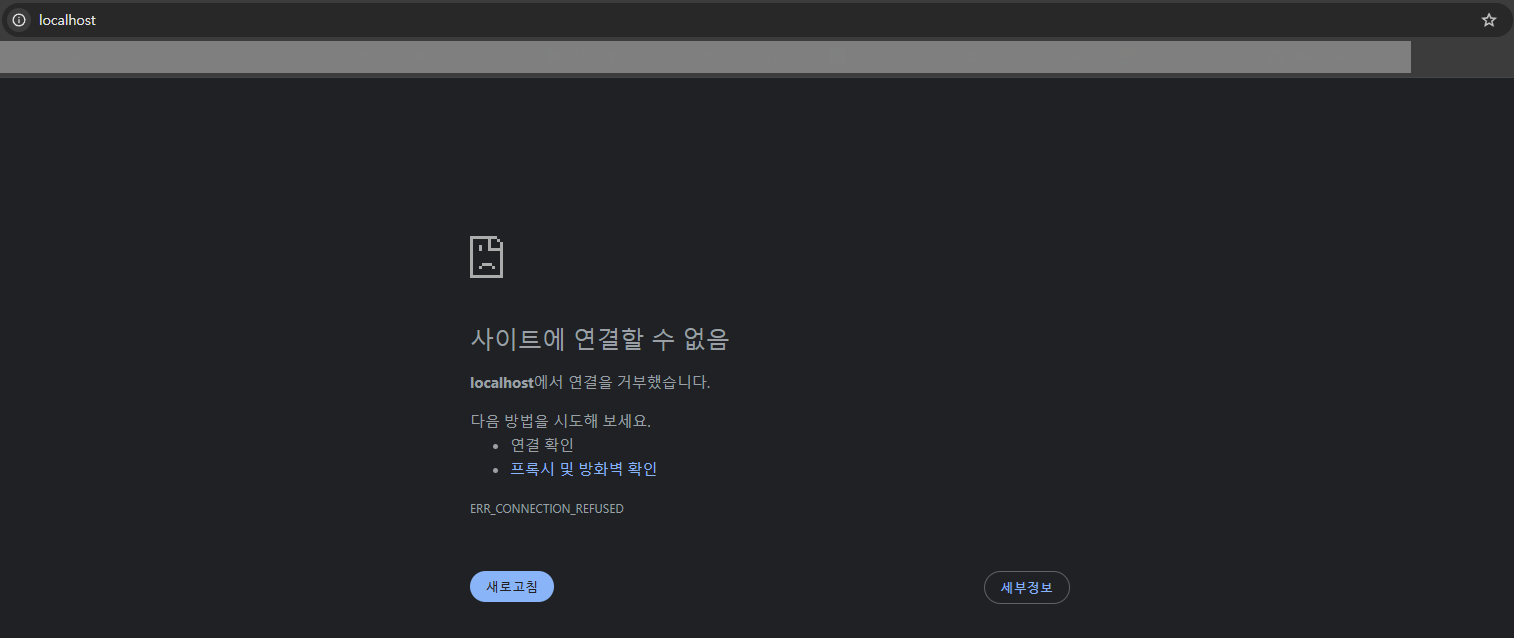
d6c5a7aeb049   nginx     "/docker-entrypoint.…"   3 minutes ago   Exited (0) 22 seconds ago             webserver
이후 브라우저에서 http://localhost:80/ 접속하면 Nginx 서버가 종료된 것을 확인할 수 있다.
7) 컨테이너 삭제 & 이미지 삭제
- Windows PowerShell
PS C:\Users\admin> docker rm d6c5
d6c5
PS C:\Users\admin> docker ps -a
CONTAINER ID   IMAGE     COMMAND   CREATED   STATUS    PORTS     NAMES
PS C:\Users\admin> docker image ls
                                                                                                                                                                                             i Info →   U  In Use
IMAGE          ID             DISK USAGE   CONTENT SIZE   EXTRA
nginx:latest   6e23479198b9        240MB         65.8MB
PS C:\Users\admin> docker image rm 6e23
Untagged: nginx:latest
Deleted: sha256:6e23479198b998e5e25921dff8455837c7636a67111a04a635cf1bb363d199dc
PS C:\Users\admin> docker image ls
                                                                                                                                                                                             i Info →   U  In Use
IMAGE   ID             DISK USAGE   CONTENT SIZE   EXTRA
비전공자도 이해할 수 있는 Docker 입문/실전| JSCODE 박재성 - 인프런 강의
현재 평점 4.9점 수강생 14,444명인 강의를 만나보세요. 비전공자 입장에서도 쉽게 이해할 수 있고, 실전에서 바로 적용 가능한 Docker 입문/실전 강의를 만들어봤습니다! Docker 기본 개념, Spring Boot를
www.inflearn.com
'강의 실습 > 비전공자도 이해할 수 있는 Docker 입문 실전' 카테고리의 다른 글
| Docker Volume(도커 볼륨) (0) | 2026.05.06 |
|---|---|
| [실습] Docker로 Redis 실행시켜보기 (0) | 2026.05.05 |
| 실행중인 컨테이너 내부에 접속하기 (exec -it) (0) | 2026.05.03 |
| 컨테이너(Container) 로그 조회 (0) | 2026.05.03 |
| 컨테이너(Container) 조회 / 중지 / 삭제 (0) | 2026.05.02 |


댓글